
Export a Google Maps List to KML Without Google Takeout
Google Takeout exports a saved list as a CSV with names, notes and links, but no coordinates, so map apps can't use it. Pinshift reads the list from its share link and gives you a KML file with real coordinates in under a minute.
Copy the list's share link
In Google Maps open Saved, pick the list, tap Share and copy the link ("Anyone with the link").
Choose KML
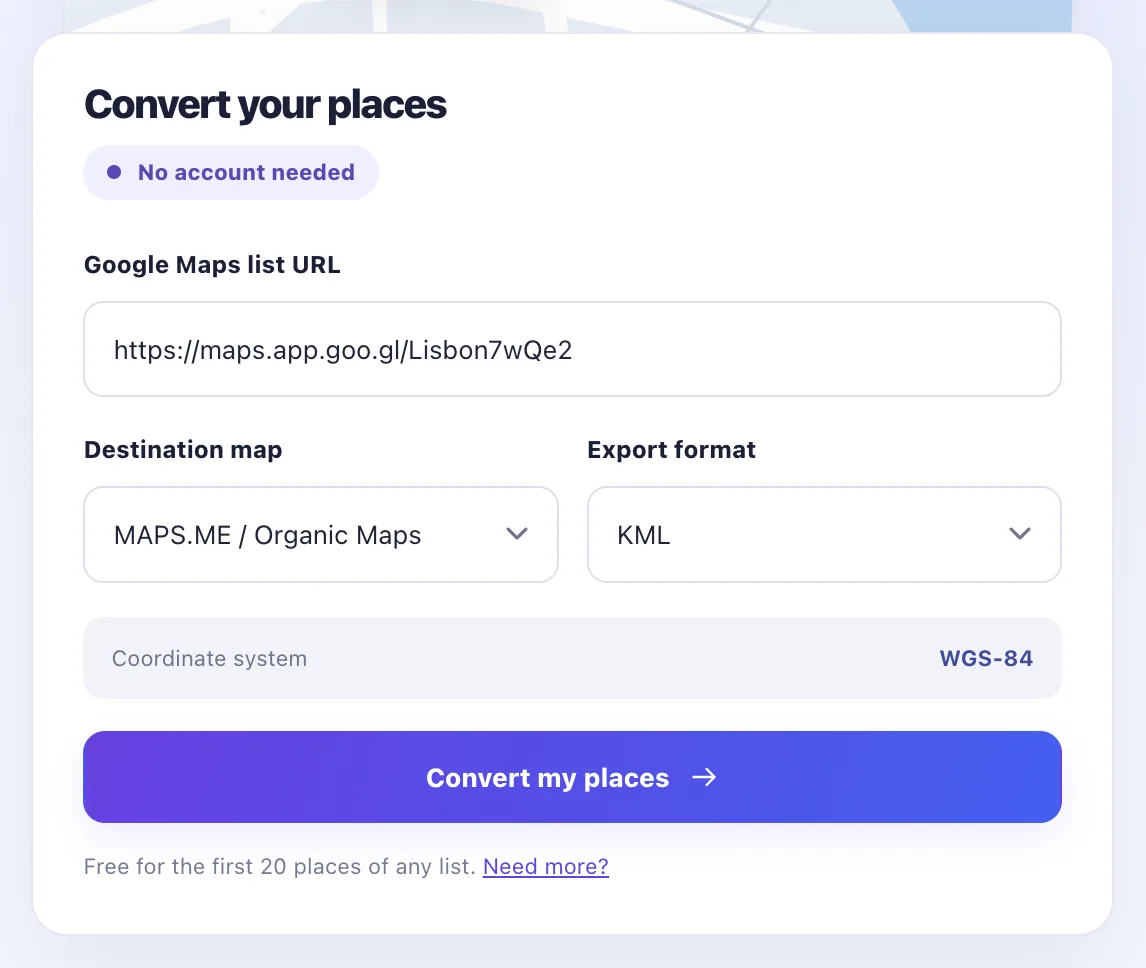
Paste the link into the converter and pick KML. GPX, GeoJSON and CSV are one click away on the next page.
Download
Review the places, untick any you don't want, and download the file.
Takeout or Pinshift
- Takeout: a CSV with title, note, comment and a Google Maps URL; no latitude or longitude (Google's export schema).
- Pinshift: KML 2.2 with one placemark per place, the address and note as its description, coordinates in WGS-84.
- No Google sign-in: the list is read through its share link and kept in memory for 24 hours only.
Where the KML works
Google Earth (File → Open), Google My Maps (Import), Organic Maps, MAPS.ME and most GIS tools. Places in mainland China are converted from Google's shifted coordinates, so they land in the right spot.
Convert your listQuestions
Why not just use Google Takeout?
Takeout exports a saved list as a CSV with the title, note, comment and a Google Maps URL of each place, but no latitude or longitude. Map apps cannot open it as places.
Do I have to sign in with Google?
No. Pinshift reads the list through its share link, the same way a friend with the link would see it.
Do you keep my list?
It stays in memory for 24 hours so you can download other formats, and is never written to disk or logged.
What is in the KML file?
One placemark per place with its name, the address and your note as the description, and coordinates in WGS-84. The document is named after your list.
Related guides
Updated 15 November 2026 · All guides