
How to Import Google Maps Saved Places into MAPS.ME
MAPS.ME imports bookmarks from KML files. Turn your shared Google Maps list into KML with Pinshift, open it with MAPS.ME, and your places are there as bookmarks, offline.
Share the list in Google Maps
Open Saved, pick the list, tap Share and copy the link ("Anyone with the link").
Convert to KML
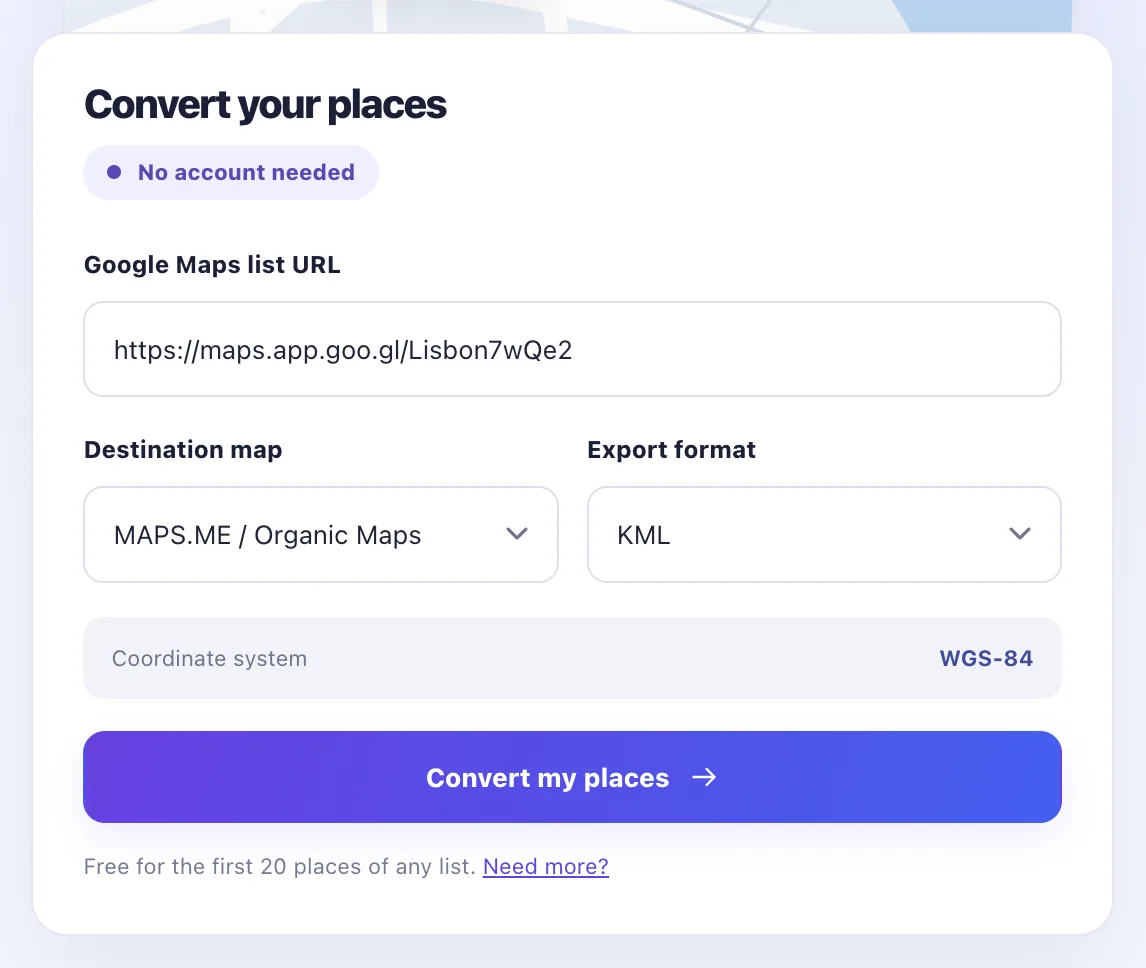
Paste the link, choose MAPS.ME / Organic Maps and KML, and press Convert.
Download on your phone
Review the places and download the KML, ideally straight on the phone that has MAPS.ME.
Open the file in MAPS.ME
- iPhone: open the KML file, tap Share, choose "Copy to maps.me".
- Android: open the file and pick MAPS.ME in the "Open with" list.
Source: MAPS.ME support, How to import bookmarks. The article is a few years old, so labels in the app may differ.
Limits
- MAPS.ME keeps points and tracks from KML; pin colours and icons become its default.
- Name, address and your note come across; Google's photos and reviews do not.
- Up to 20 places free, up to 500 with a pass.
Questions
Which file does MAPS.ME accept?
MAPS.ME documents KML and KMZ bookmark files. Pick KML in Pinshift.
Why are all my pins red?
MAPS.ME imports points and tracks but not pin colours or icons from KML, so imported pins get its default colour.
Do imported places work offline?
Yes, once you have downloaded the map of that region in MAPS.ME.
Is it free?
The first 20 places of any list are free. A Trip Pass ($5, 30 days) converts lists of up to 500 places.
Related guides
Updated 15 November 2026 · All guides